How to remove the background from a photo with free AI
By the OpenToolbox team · Updated · 6 min read
In short
To remove the background from a photo, run it through an AI segmentation model that separates the subject from everything behind it, then save the result as a transparent PNG. OpenToolbox's Background Remover downloads an open-source model once and runs it in your browser, keeps the original resolution, and lets you add a color, blur or new picture behind the subject.
Key points
- The AI model is downloaded once (about 81–135 MB) and cached; after that, photos are processed on your device.
- MVANet is the best choice for any subject; ORMBG is lighter and made for people.
- Results keep the original size, up to 40 megapixels; larger photos are scaled down to that.
- Save as PNG or WebP to keep the transparency; JPG turns the background white.
Step by step
Open the tool
Go to Background Remover in Chrome, Edge, Firefox or Safari.
Download a model
Choose Best quality, any subject (MVANet) or People and portraits (ORMBG) and click Download model. This happens only the first time.
Add photos
Drop one photo or a whole batch, or paste a screenshot with Ctrl+V. Each photo is processed in turn.
Choose a new background
Under New background, keep None for transparency, or pick Color, Blur (the original background, blurred) or Image.
Fix and download
Adjust the edge if needed, touch up with the Refine brush, then download PNG, WebP or JPG, or all photos as a ZIP.
How AI background removal works
Background removal is a kind of image segmentation: a neural network looks at the photo and estimates, for every pixel, how much it belongs to the main subject. The result is a mask, a grayscale image where white is subject, black is background and gray is in between, such as strands of hair or a blurry edge. The mask becomes the transparency (alpha channel) of the cut-out.
The models work on a 1024 × 1024 version of your photo, which is fast but too coarse for a large picture. The tool then refines the mask at the full resolution of your photo with an edge-aware filter, which follows the real edges of hair and fur instead of simply enlarging the small mask. That is why the download has the same size as your original.
Which model to choose
| MVANet | ORMBG | |
|---|---|---|
| Best for | People, products, animals, objects | Photos of people and portraits |
| Download with WebGPU | about 81 MB | about 84 MB |
| Download without WebGPU | about 135 MB | about 42 MB |
| Speed without WebGPU | about 1–2 minutes per photo | about 10–20 seconds per photo |
| License | MIT | Apache-2.0 |
With WebGPU on our test PC (NVIDIA GeForce RTX 5060), MVANet needed 1.1 seconds of AI time for a 12-megapixel phone photo. A 45-megapixel portrait was scaled to 7746 × 5164 (40 megapixels) and took 3.3 seconds; the full-resolution transparent PNG weighed 28.5 MB. Downloading and preparing the 81 MB model took about 30 seconds on our connection, once.
WebGPU lets the browser run the model on your graphics card, which makes MVANet fast; it is available in recent versions of Chrome and Edge. Without it, the model runs on the processor: still private, just slower. If you mostly cut out people on an older computer, ORMBG is the quicker option.
Getting clean edges
Most photos need no touch-up. When they do, three controls help:
- Shift edge grows or shrinks the cut-out slightly. Shrink it to remove a thin halo of the old background; grow it if the edge eats into the subject.
- Feather edges softens the outline, which helps a cut-out blend into a new background.
- Refine brush lets you paint directly on the photo: Restore brings back parts the model removed, such as a hand or a held object, and Erase removes leftovers, such as a piece of floor between the legs. Your strokes are applied to the full-resolution download.
Keep Edge-aware refinement on for hair and fur. The settings are relative to the photo size, so the same values look the same on a small and a large picture.
Hard cases for any model: glass and other transparent objects, subjects the same color as the background, and soft shadows on the ground, which are usually removed with the background.
Adding a new background
| Background | Result | Typical use |
|---|---|---|
| None | Only the subject, on transparency | Logos, stickers, design layouts, presentations |
| Color | The subject on a flat color | White background for marketplace product photos, ID-style portraits |
| Blur | The original background, blurred (5–100%) | Portrait-mode effect for profile pictures |
| Image | Your own picture behind the subject | New scenery; the image is scaled to cover the whole photo |
For official passport or visa pictures, use Passport Photo Maker, which also crops to the required size. To turn a cut-out into a sticker with a white border, use Sticker Maker.
Saving the result
- PNG keeps the transparency without any loss: the safest choice for design work.
- WebP also keeps the transparency and makes smaller files, which is good for websites.
- JPG has no transparency, so a transparent background becomes white; use it with a color, blur or image background.
A transparent PNG of a large photo can weigh a lot: 2.3 MB for our 12-megapixel test photo, 28.5 MB for the 40-megapixel portrait. To shrink it for the web, convert it to WebP or run it through Image Compressor.
Private by design
Most online background removers upload your photo to a server to run the AI there. Here, only the model is downloaded, from Hugging Face, the first time you use it; your photos are processed in your browser and never sent anywhere. Both models have permissive open-source licenses, and the tool adds no watermark, so you can use the results commercially.
How we tested
We ran every test on 24 October 2026 with the tool exactly as published, in Chrome 152 on a desktop PC (AMD Ryzen 7 5700X, NVIDIA GeForce RTX 5060, 32 GB of RAM). Sizes are the ones the tool shows (1 MB = 1,048,576 bytes); times include reading the files.
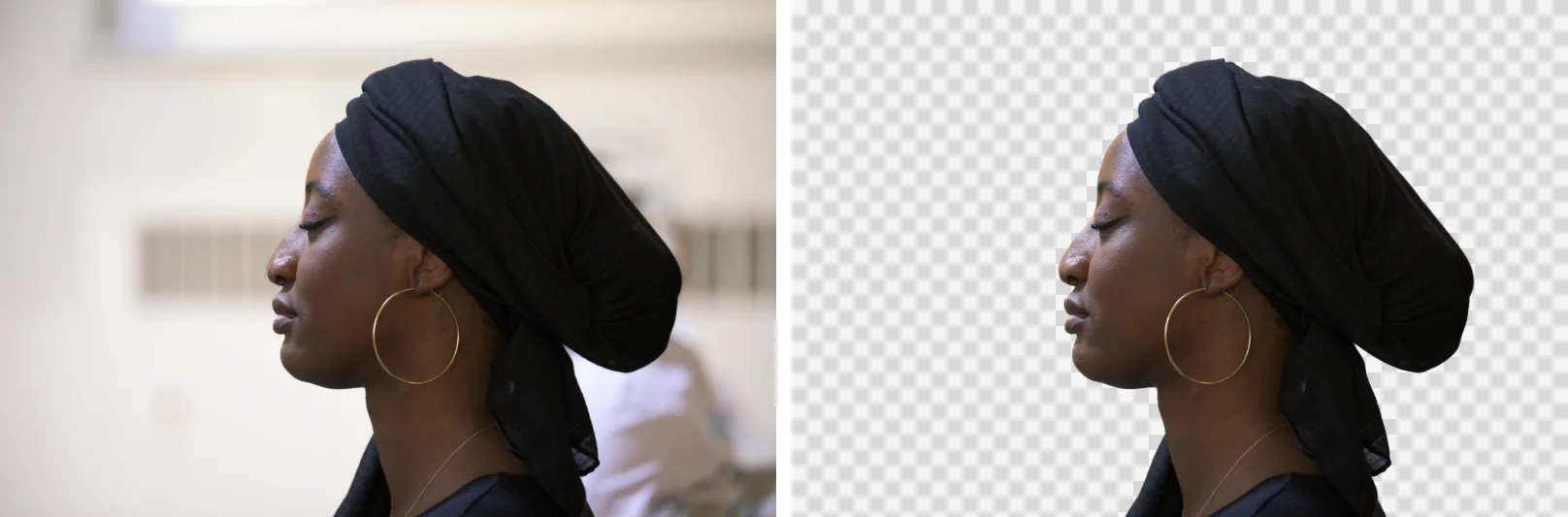
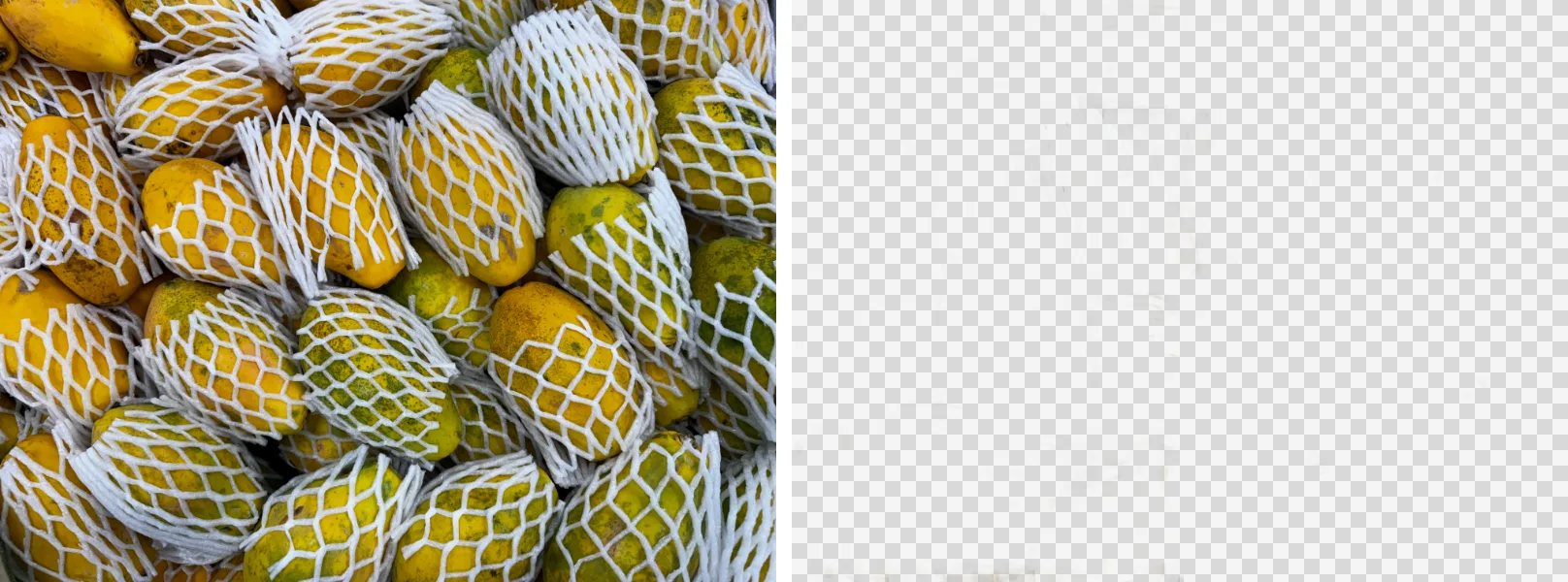
Both photos were processed with MVANet, Edge-aware refinement on, no feathering or edge shift, saved as PNG. The figures show the downloaded results, scaled down for this page.
Test files
- Woman in a headwrap in Quebec City, 8256 × 5504 (45 MP), by Wilfredor (CC0 · Wikimedia Commons)
- Papayas, 4032 × 3024 phone photo, by ArionStar (CC0 · Wikimedia Commons)
Frequently asked questions
Is this background remover really free?
Yes. There is no sign-up, no credit system and no watermark, and results keep the full resolution of your photo up to 40 megapixels.
Are my photos uploaded to a server?
No. The AI model is downloaded once from Hugging Face and then runs in your browser, so your photos are processed only on your device.
Why is it slow on my computer?
Without WebGPU the model runs on the processor. MVANet then takes about 1–2 minutes per photo; switch to ORMBG for photos of people, which takes about 10–20 seconds, or use a recent Chrome or Edge with WebGPU.
How do I make a white background for product photos?
Choose Color as the new background, pick white, and download as JPG or PNG. Marketplace listings usually ask for a pure white background like this.
Can I remove the background from many photos at once?
Yes. Drop a whole batch; each photo is processed in turn with the same settings, and you can download them all as a ZIP.